
Why print proof approval still goes wrong
Print proof approval is the step that decides whether a job prints right the first time or gets printed twice at your cost. In most print shops the artwork arrives on WhatsApp or email, often in four or five versions, and someone has to work out which file is the final one. The job card is typed into Excel by hand, the proof goes back to the client as a screenshot, and the reply is a thumbs-up, an "ok but change the date" or nothing at all.
That is where the money leaks. A job goes to press on a casual "looks fine", then the client spots the wrong phone number on five hundred cards and says they never approved it. Nobody can find the message where they did. Meanwhile other jobs sit waiting because the proof was never chased, and the press stands idle while the team scrolls through chats looking for the latest file.
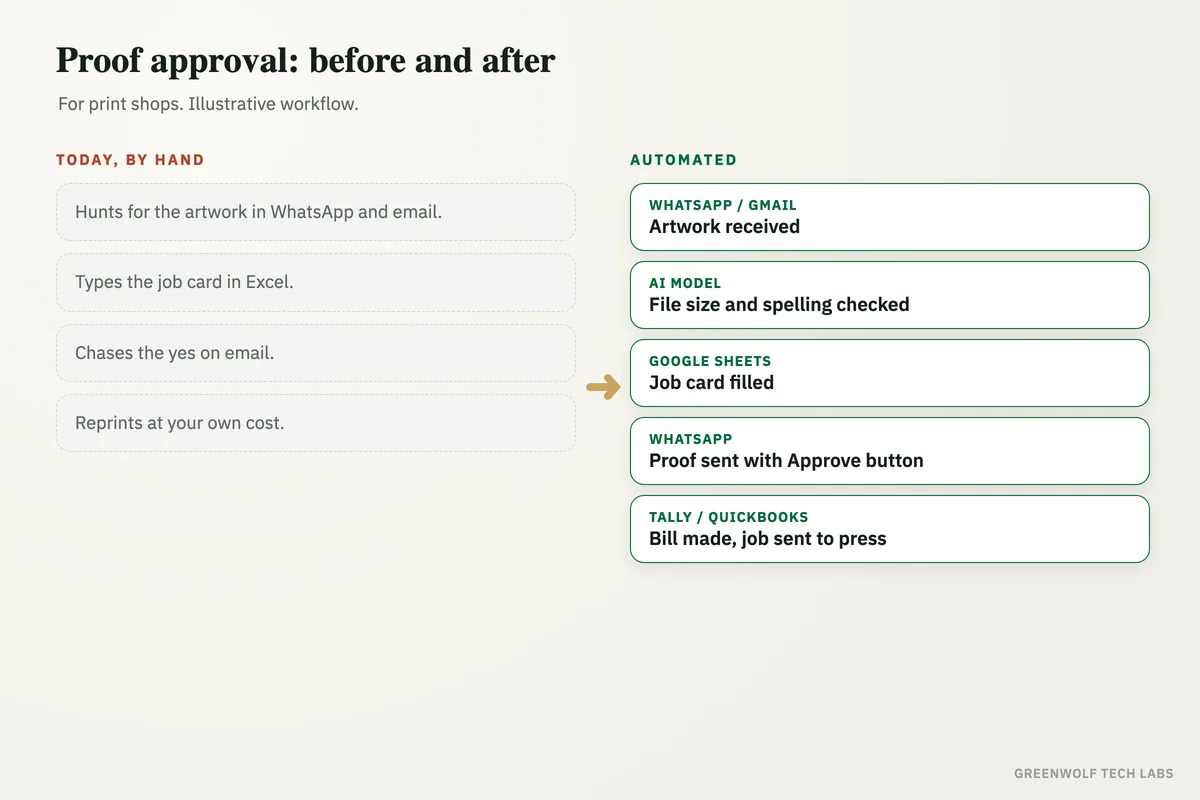
This workflow collects the artwork from WhatsApp or email, has an AI model check the file size, quality and spelling, fills the job card in Google Sheets, and sends the client the proof on WhatsApp with Approve and Change buttons. Approved jobs get a bill from Tally or QuickBooks and go to the press queue. Change requests go straight to the designer as a clear list. Every yes is saved with the job, with the date and the exact file that was approved.
What gets automated
Artwork collected in one place
Files sent on WhatsApp or email are saved to one job folder in Google Drive, named by job number and version, so the latest file is always clear.
- WhatsApp and email files
- Versions numbered
- One folder per job
File checked before the proof
An AI model checks the artwork against the order: size, image quality, margins for cutting, and spelling of names, phone numbers and dates.
- Low quality images flagged
- Size matched to the order
- Spelling and numbers read back
Job card filled itself
Quantity, size, paper, finish, price and due date are added to the job card in Google Sheets or Excel from the order, without retyping.
- One row per job
- Due date set
- Price from your rate sheet
Proof sent with an Approve button
The client gets the proof on WhatsApp or email with Approve and Change buttons, and a polite reminder if they do not reply.
- Approve or Change in one tap
- Reminder after a set time
- Change notes read by an AI model
Only approved jobs go to press
A job moves to the press queue only after a clear approval, and the bill or advance request is made in Tally or QuickBooks at the same time.
- No yes, no print
- Bill made on approval
- Payment link if needed
Every job on one screen
Proofs sent, approved, waiting and changed show on one dashboard, with jobs stuck on approval flagged to the owner.
- Waiting for approval
- Changes per job
- Jobs due this week
How the workflow runs
WhatsApp or Gmail: artwork received
The client sends the design on WhatsApp or email, and the file is saved to the job folder with a version number.
AI model: file checked
The artwork is checked for size, image quality and spelling, and anything wrong is sent back to the client before a proof is made.
Google Sheets: job card filled
Quantity, paper, finish, price and due date are added to the job card from the order.
WhatsApp: proof sent with an Approve button
The client gets the proof with Approve and Change buttons, and a reminder if there is no reply.
Check: did the client approve?
The reply is read and the job takes one of two paths. The approval is saved with the date and the exact file.
Tally or QuickBooks: bill made, job sent to press
Approved jobs get a bill or advance request and move to the press queue.
Alert: designer gets the changes
Change requests go to the designer as a clear list, and the new proof goes back to the client the same way.
Who it is for
What you need to start
You keep the tools you already use: WhatsApp Business and Gmail or Outlook for client messages, Google Drive for files, a job sheet in Google Sheets or Excel, and Tally, QuickBooks or Zoho Books for bills. Your designers keep working in their own design software. The workflow sits between these tools, built on n8n or Make, with an AI model to check files and read client replies.
The data is what you already have: your product list with sizes and paper options, your rate sheet, and the client's name and number on each order. The checks the AI runs, such as minimum image quality and the fields to read back, are set once with your production head.
A first version that collects artwork, fills the job card and sends proofs with an Approve button usually takes a couple of weeks. Billing on approval, reminders and the dashboard follow once your team is comfortable with it.
Questions about print proof approval
What is print proof approval?
Is a WhatsApp message a valid proof approval?
Can AI check artwork before it goes to print?
Do I need special proofing software?
What happens if the client does not reply to the proof?
How many jobs did you reprint this year?
Book a digital audit. Tell us how artwork and approvals reach you today, and we will map what print proof approval would look like for your shop.
Part of our Business Process Automation hub. Start with our business automation services.