

Why staff expense claims eat your month-end
Expense claim automation fixes a job every business with staff dreads: collecting bills, checking them and paying people back. A shop, a clinic, an agency, a factory and a distributor all run it the same way. Staff pay for fuel, travel, a client lunch or a spare part, keep the bill in a pocket, and hand over a crumpled pile at month-end, or send blurry photos into a WhatsApp chat that scrolls out of sight.
Then someone in accounts types every bill into Excel, asks who approved the lunch, spots the same taxi bill claimed twice, chases the missing ones and finally enters it all in Tally or QuickBooks. Staff wait weeks for their money and start to grumble. The owner signs off a total without really knowing what is inside it.
This workflow lets staff send a photo of the bill on WhatsApp the moment they pay. An AI model reads the amount, date, vendor and tax, the claim lands in one sheet with a check against your expense rules, the manager approves in one tap, and approved claims are posted to your accounts with the bill attached. Accounts only looks at the claims that break a rule.
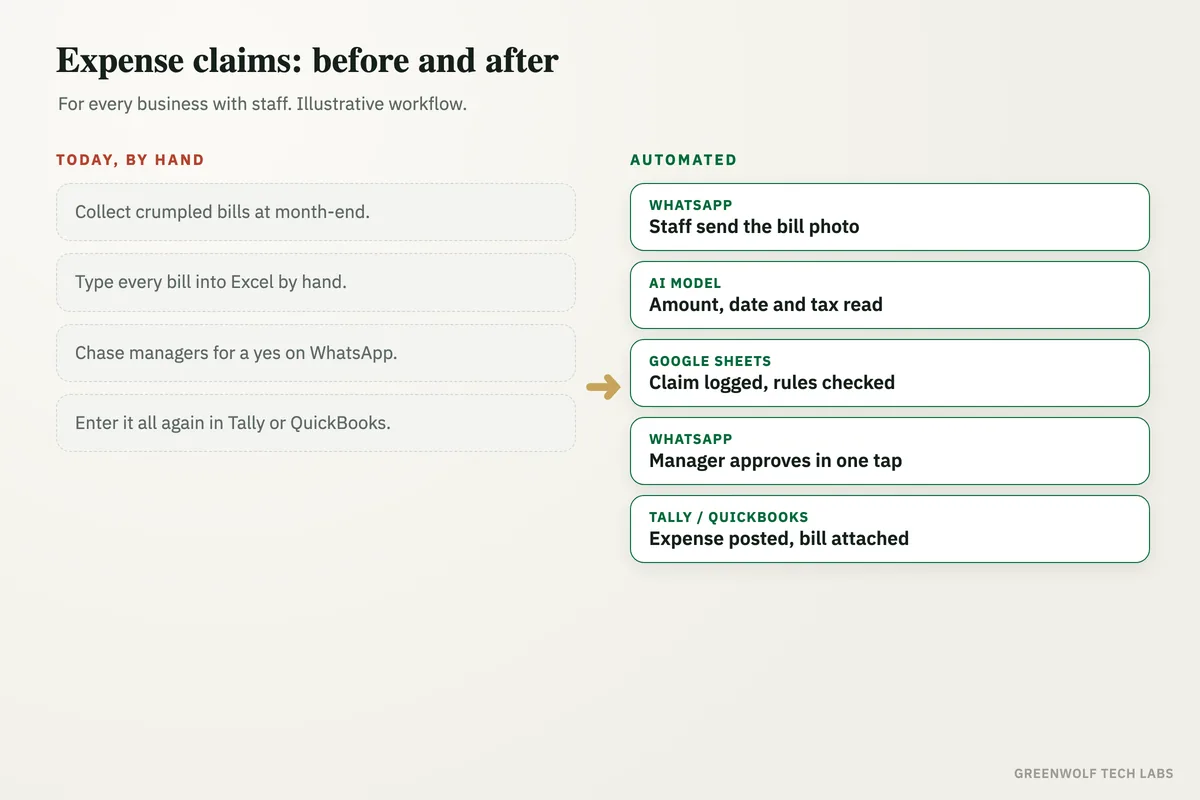
What gets automated
Bills collected on WhatsApp
Staff send a photo or PDF of the bill to one WhatsApp number with a short note on what it was for. No forms, no app to install.
- Photo, PDF or forwarded email
- One number for everyone
- Sent the day they pay
Bills read by an AI model
An AI model reads the amount, date, vendor, GST or sales tax and the category from the bill, even when the photo is a little tilted.
- Amount and date
- Vendor and tax
- Category suggested
Rules checked before anyone looks
Each claim is checked against your limits, such as a daily food limit, and against earlier claims, so the same bill cannot be claimed twice.
- Spending limits
- Duplicate bills caught
- Missing bills flagged
One-tap approval for the manager
Claims inside the rules go to the right manager on WhatsApp with Approve and Ask buttons. No more chasing signatures at month-end.
- Approve or ask a question
- Reminder if it waits
- History kept
Posted to Tally or QuickBooks
Approved claims are posted as expenses under the right head, with the bill image filed in Google Drive and linked to the entry.
- Right expense head
- Bill attached
- Ready for the auditor
Payout list and a monthly view
Accounts gets one list of who to pay back on payday, staff get a WhatsApp when it is paid, and the owner sees spend by person and category.
- One payout list
- Staff told when paid
- Spend by person
How the workflow runs
WhatsApp: staff send the bill
A photo or PDF of the bill comes in on one business number, with a line on what it was for.
AI model: the bill is read
Amount, date, vendor, tax and category are read from the bill and the staff member is matched by phone number.
Google Sheets: claim logged and checked
The claim is added to one claims sheet and checked against your limits and against earlier bills for duplicates.
Check: inside the rules?
Claims inside the rules go to the manager for a one-tap approval on WhatsApp. Claims outside them go to accounts with the reason.
Tally or QuickBooks: expense posted
Approved claims are posted under the right expense head, with the bill filed in Google Drive and linked.
Payday: payout list and a WhatsApp
Accounts gets one list of who to pay back, and each person gets a WhatsApp once their money is sent.
Who it is for
What you need to start
You keep the tools you already use: WhatsApp Business for staff to send bills, Google Sheets or Excel for the claims list, Google Drive or OneDrive to keep the bill images, and Tally, QuickBooks, Zoho Books or Xero for the accounts. The workflow sits between them, built on n8n, Make or Zapier, with an AI model to read the bills.
The data is simple: a list of staff with their phone numbers and managers, your expense heads, and the rules you already follow, such as daily limits or which spends need an owner's yes. If the rules only live in someone's head today, writing them down is the first step.
A first version that collects bills on WhatsApp, reads them and builds the claims sheet usually takes a couple of weeks. Approvals, posting to the accounts and the monthly view follow once staff are sending bills the new way.
Questions about expense claim automation
What is expense claim automation?
Can staff submit expense claims on WhatsApp?
How accurate is AI at reading receipts?
Does it work with Tally and QuickBooks?
How do I stop duplicate or fake expense claims?
How many bills are waiting in your team's pockets right now?
Book a digital audit. Show us how staff claim expenses today, and we will map what expense claim automation would look like for your business.
Part of our Sales and Marketing Automation hub. Start with our marketing automation services.